

Quickstart
This quickstart takes you from a single config file to a full Nebari Kubernetes Platform (NKP) running on your own machine, with sign-in, routing, and GitOps already set up. It takes about 15 minutes, costs nothing, and needs no cloud account.
Before you start
Section titled “Before you start”You'll need:
- Docker, which runs the cluster on your machine. Start it before you deploy.
nic, which creates the cluster and installs the platform.kubectl, which lets you check that the cluster is healthy.
Step 1: Get the configuration
Section titled “Step 1: Get the configuration”nic deploys from a single YAML file, and there's a starter file for each provider, such as AWS, Hetzner, or your own machine. This quickstart uses the local one. Download it into an empty directory:
curl -O https://raw.githubusercontent.com/nebari-dev/nebari-infrastructure-core/main/examples/local-config.yamlThe defaults work as is, so you don't need to edit anything. To change settings such as the domain, see the local guide.
Step 2: Check the configuration
Section titled “Step 2: Check the configuration”To catch typos and missing fields before deploying, check the file:
nic validate -f local-config.yamlYou should see:
✓ Configuration file is valid Provider: local Project: my-nebari-localStep 3: Deploy
Section titled “Step 3: Deploy”With the configuration valid, deploy the cluster and install the platform:
nic deploy -f local-config.yamlWhile it runs, nic:
- creates a Kubernetes cluster inside Docker
- sets up a Git repository on your disk at
~/.nic/gitops/my-nebari-local - starts ArgoCD, which installs sign-in, routing, and certificates from the Git repository
At the end, nic prints a line to add to /etc/hosts, the file that tells your computer where to find a hostname:
  HOSTS FILE CONFIGURATION REQUIRED
  Point the platform hostnames at it by adding this line to /etc/hosts:
    127.0.0.1 nebari.local keycloak.nebari.local argocd.nebari.local
To add it on macOS or Linux, run:
echo "127.0.0.1 nebari.local keycloak.nebari.local argocd.nebari.local" | sudo tee -a /etc/hostsStep 4: Confirm it worked
Section titled “Step 4: Confirm it worked”To check the cluster, you'll use kubectl. First, save the cluster's connection details to a file and point kubectl at it:
nic kubeconfig -f local-config.yaml -o kubeconfig.yamlexport KUBECONFIG=$(pwd)/kubeconfig.yamlTo check that everything nic installed is healthy, ask ArgoCD:
kubectl get applications -n argocdYou should see something like this:
NAME SYNC STATUS HEALTH STATUScert-manager Synced Healthygateway-config OutOfSync Healthykeycloak OutOfSync Healthynebari-landingpage Synced Healthy...Within a few minutes, every application should show Healthy. Some may stay OutOfSync, which is normal.
Step 5: Open the landing page
Section titled “Step 5: Open the landing page”The landing page is where your team will sign in and find every app you add to the platform. Right now it's empty, since no apps are installed yet.
Open https://nebari.local. Skip past the browser's privacy warning by choosing Advanced, then continuing.
You'll see your platform's sign-in page:
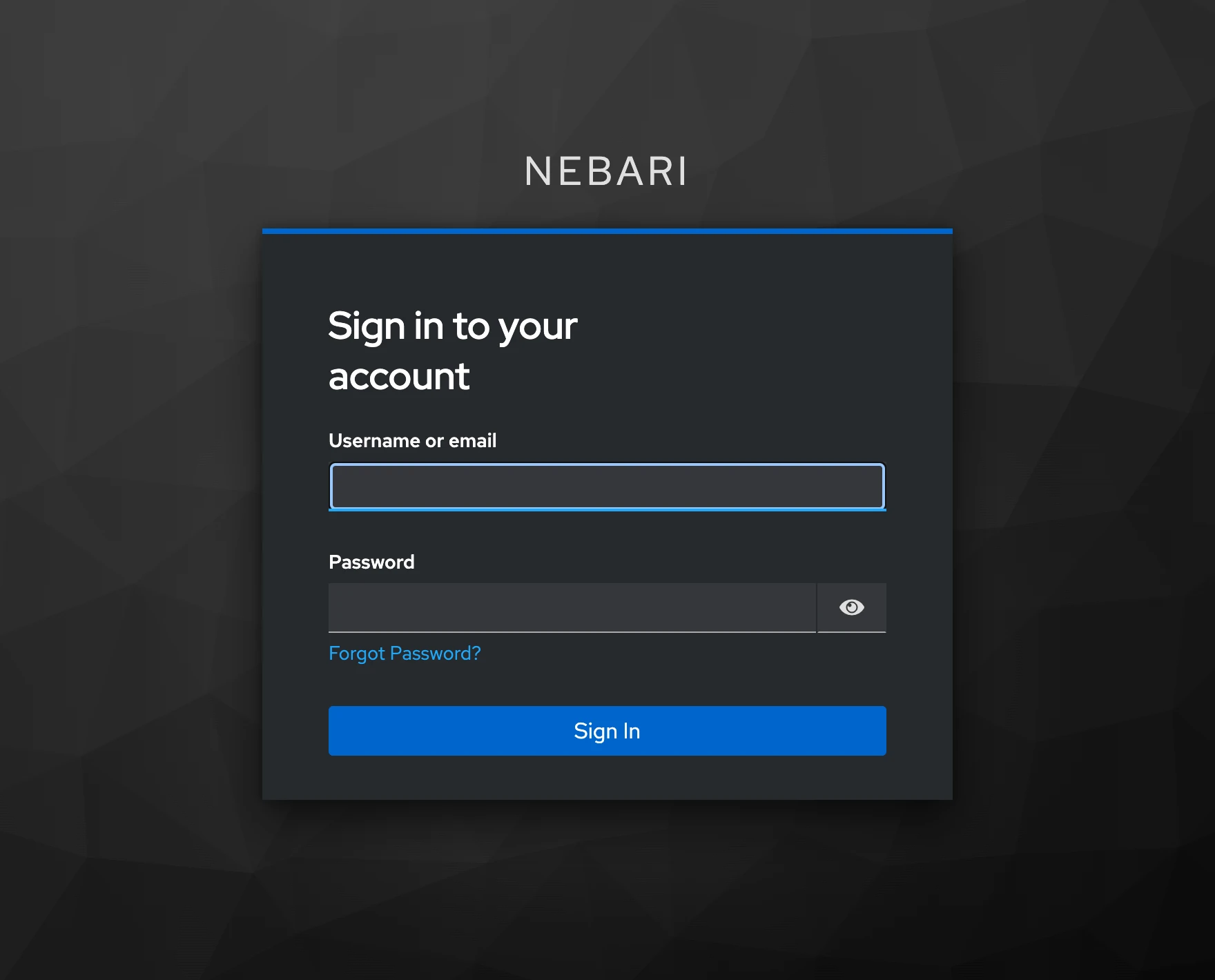
To create a user and sign in, see Keycloak authentication.
Step 6: Tear it down
Section titled “Step 6: Tear it down”When you're done exploring, delete the cluster to free up your machine's memory and CPU. You can redeploy it anytime with Step 3. To tear it down, delete the cluster:
nic destroy -f local-config.yamlnic asks for confirmation, then deletes the cluster. Two things stay on your machine:
- The GitOps repository
niccreated at~/.nic/gitops/my-nebari-local. The next deploy reuses its files, including any packs you added. Delete it to start from scratch. - The
/etc/hostsline from Step 3, which points thenebari.localhostnames at your machine. Keep it if you'll deploy locally again. Otherwise, runsudo nano /etc/hostsand delete that line.
Ready for the cloud?
Section titled “Ready for the cloud?”A local cluster is great for trying things out, but only you can reach it. To give your team a platform that's always online, deploy to a cloud provider.
The provider guides walk you through the full setup with a real config file:
Next steps
Section titled “Next steps”- Add apps: deploy again (Steps 3 to 5), then install a Software Pack, such as notebooks or dashboards. Browse the catalog to see what's available.
- Understand what you just built: read NKP architecture.